
PetroBench imports RodStar XML files and maps the data into a ready-to-run simulation. This covers the import process, what gets pulled in, and what to check before running.
Supported file formats
PetroBench accepts two RodStar export formats:
- File Type:
.rsdx- deviated well files. Contains directional survey data alongside the rod string and operating parameters. - File Type:
.rsvx- vertical well files. Same data structure, minus the directional survey.
Both are XML-based. Export them from RodStar using File > Save As, and select the XML format.
Import a file
Navigate to Wells in the sidebar, then click Import. Drag your file into the upload area or click to browse. PetroBench detects the file type automatically.
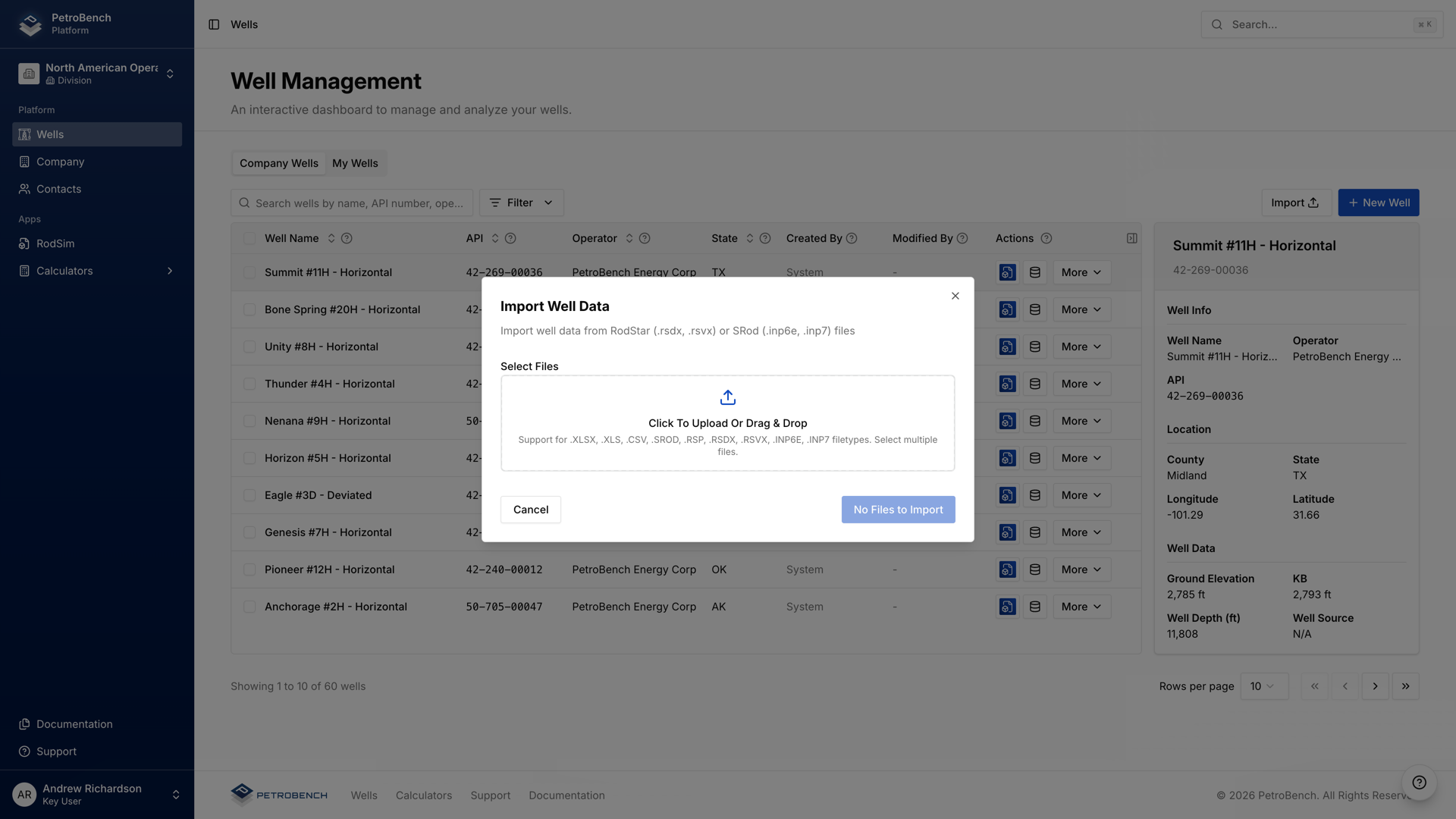
Once uploaded, PetroBench parses the XML and maps every field to the corresponding simulation input. You'll see a confirmation screen showing what was imported. Review the summary, then click Confirm Import.
What gets imported
PetroBench extracts and maps the following from your RodStar file:
- Well data: well name, field, lease, API number, fluid properties, and casing/tubing dimensions.
- Directional survey: measured depth, inclination, and azimuth at each survey station (
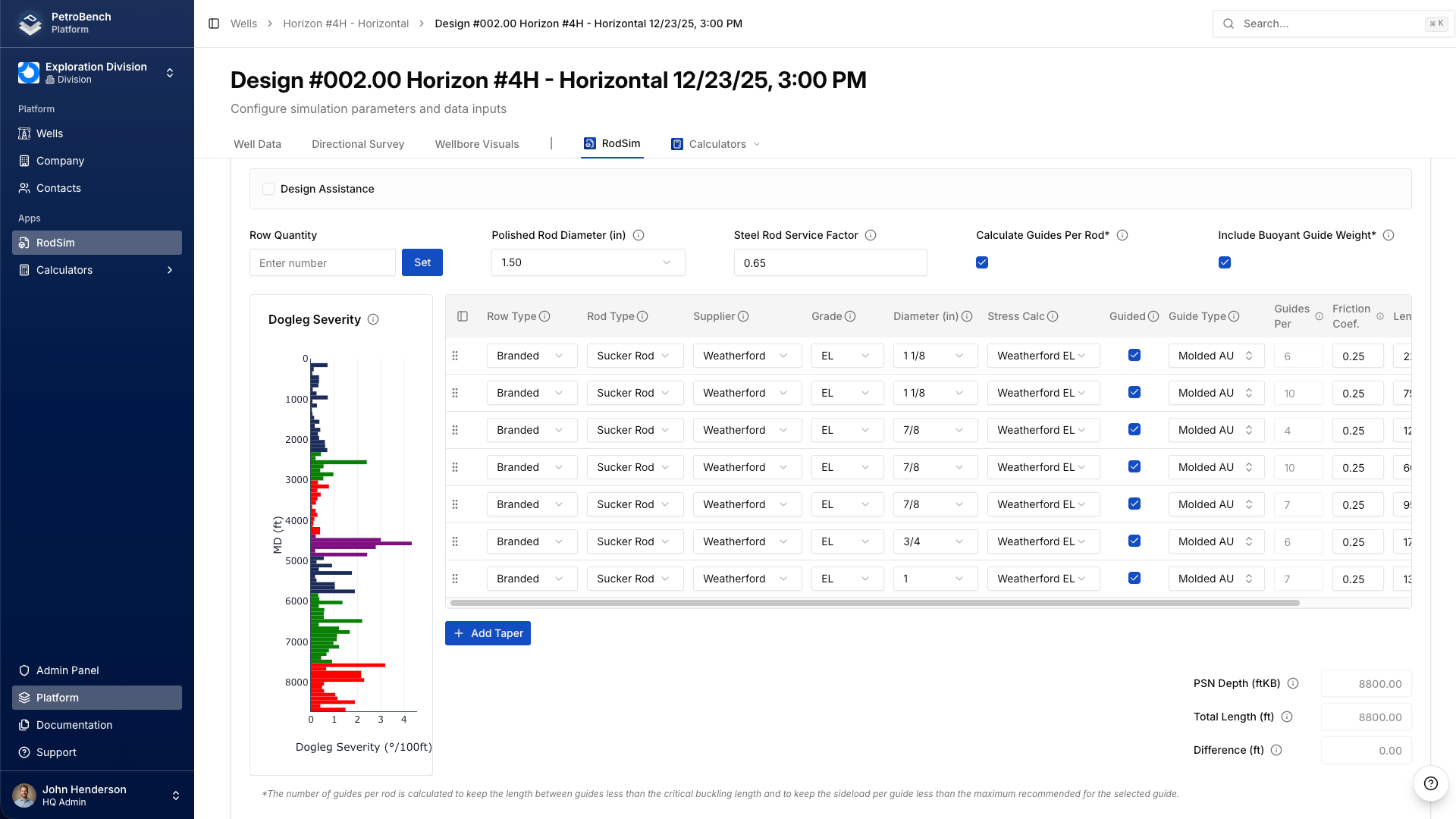
.rsdxfiles only). - Rod string: taper lengths, diameters, grades, and guide spacing for each section.
- Operating parameters: pumping unit geometry, stroke length, pumping speed, motor HP, and counterbalance.
Verify the import
After import, open the well and check a few things before running a simulation:
- Directional survey - Confirm the survey stations imported correctly. The wellbore visualization should match your expected trajectory.
- Rod grades - PetroBench maps RodStar grade codes to its internal grade library. Verify each taper section shows the correct grade and diameter.
- Operating parameters - Check stroke length, pumping speed, and unit geometry. These directly affect simulation accuracy.
If anything looks off, you can edit any field directly in PetroBench before running the simulation.
Run the simulation
Once you've verified the data, click Run Simulation. PetroBench uses the imported configuration as the starting point. Results are typically ready within seconds.
You don't need to re-enter any data. The import carries over everything PetroBench needs to produce rod stress, load, and torque results.
Bulk import
If you're migrating multiple wells, you can upload several files at once. Drag a batch of .rsdx and .rsvx files into the import dialog. PetroBench processes each file individually and creates a separate well for each one.
This is the fastest way to bring an entire RodStar well library into PetroBench without manual data entry.